6:52:00 PM

(2) Comments

Blue on Black Navigation Bar

design


Design a beautiful navigation bar in Photoshop. This tutorial will teach you how to combine several layer styles to create a beautiful yet simple navigation bar.


Preview of Final Results
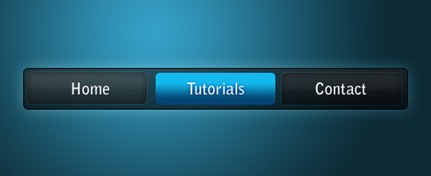
Blue on black navigation bar

Blue on Black Navigation Bar Photoshop Tutorial

Step 1

Firstly, create a new document - the size I've used is 540 by 220 pixels. Now for the background I've filled it with a black colour. To do this go Edit > Fill with the colour #0d0d0d.

Step 2

Secondly, we'll be making the background for the navigation buttons to go inside. Create a new layer (Layer > New > Layer) and select the rounded rectangle tool. Make fixed size selection of 480 by 50 pixels with a radius of 5 pixels in the middle of the document.
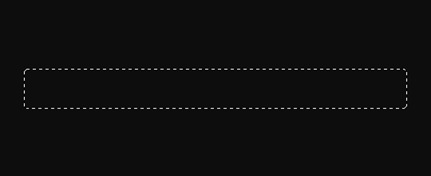
Fill this selection with a linear gradient from the colour #151515 to #050505 using the gradient tool. Deselect - Ctrl + D. Set the fill of the layer to 60% (the setting underneath the opacity in the layers window). The difference between opacity and fill is simply opacity changes the opacity of the entire layer and fill changes the opacity of everything except the layer styles.

Step 3

Now we'll be adding a couple of layer styles to this navigation background.

Layer > Layer Style > Outer Glow
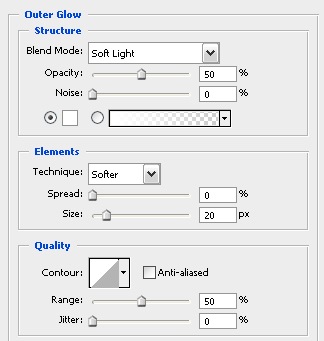
Outer glow layer style

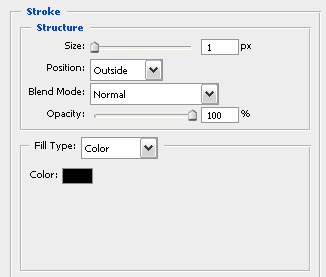
Layer > Layer Style > Stroke

Stroke layer style

Now your document should be looking something like this.

Blank black navigation bar

Step 4

Next up we'll be adding in the buttons. Create a new layer and using the rounded rectangle tool again make a selection of 150 by 40 pixels (with a radius of 5 pixels again) on the left side of the navigation bar.
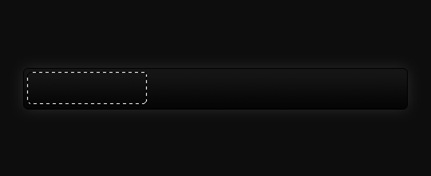
Fill this selection with a linear gradient from #323232 to #161616 using the gradient tool. Set the fill for this layer to 50%.


Step 5

I've applied three layer styles to this button to give it some depth and make it look cooler.

Layer > Layer Styles > Inner Glow
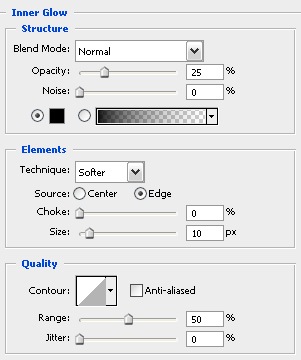
Inner glow layer style

Layer > Layer Styles > Gradient Overlay
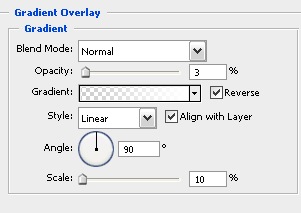
Gradient overlay layer style

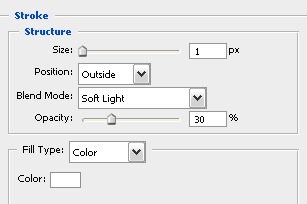
Layer > Layer Styles > Stroke

Stroke layer style

Your navigation bar should now look something like this.

Black navigation bar with button

Step 6

Select the text tool and add in some text - the font styles that I have used for the text are Bell Gothic Std, Bold, 20 pt, Crisp, #ffffff.
Text added to black navigation bar

Step 7

Now repeat the button steps so you have two new buttons - I've decided that I'd make the middle one a different colour to stand out (this can be like a mouse over effect or something if you decided to code this navigation bar for a web layout). The blue colours I used for that are #14b9ef and #054573.
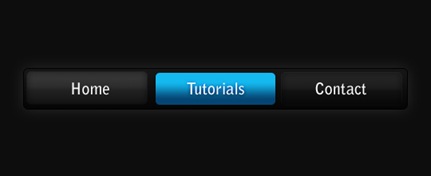
Blue accent button

Step 8

Because we have set the fill of the layers to 50-60% we can adjust the background and it can be half see through - below I've put a radial gradient with colours used in the Vista theme.

Blue on black navigation bar

ReadMore...

2:55:00 PM

(2) Comments

Alien Photo Manipulation

Turn a woman into an alien by combining two photos. This tutorial will teach you several photo manipulation techniques for creating scary photo manipulations.

Alien Photo Manipulation Photoshop Tutorial

Preview of final results
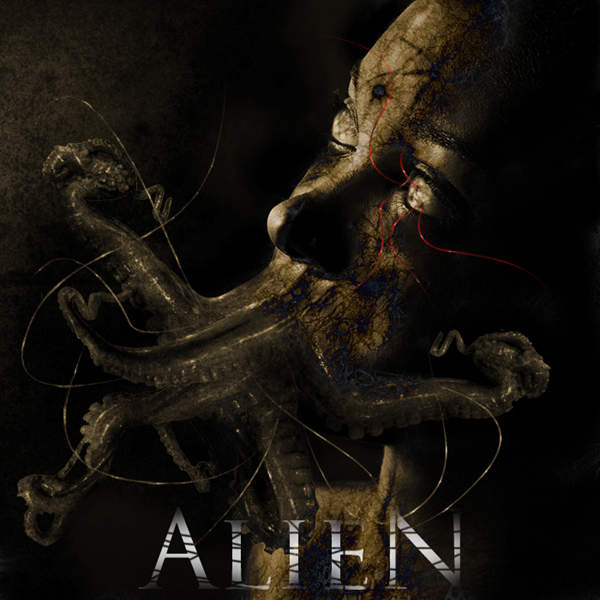
image

Stock Photos

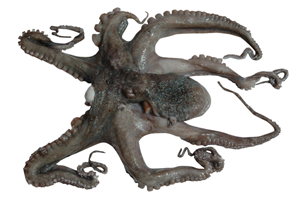
For this tutorial, you’ll need a photo of a persons head, octopus, and any grunge texture. If you like to use the same portrait of the face used in this tutorial, you may click on the image below to purchase it. Note that we only have the download link for the image of the woman.
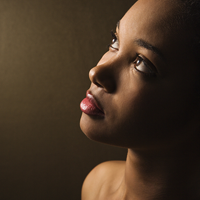
Portrait of serious young woman image

image

Step 1 – Open the octopus photo

Begin by loading the image of the octopus.
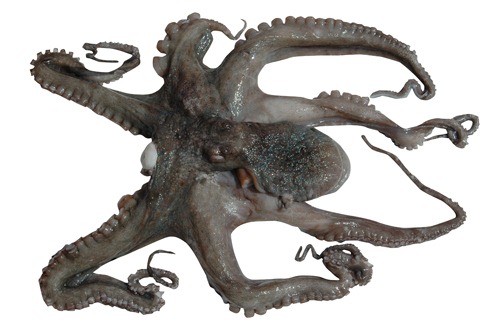
2

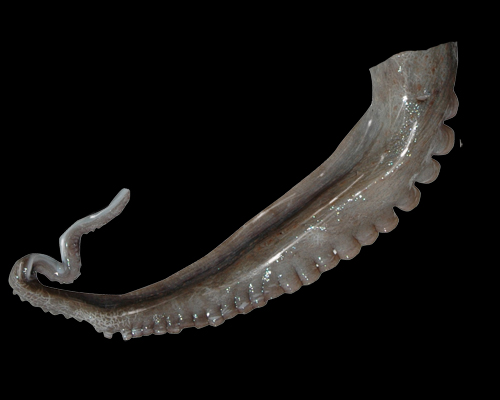
Step 2 – Detach an arm from the octopus

First, delete the white background. To do this, use the magic wand tool to create a selection of the white background then press delete on your keyboard to remove the background. Select the lasso tool and create a selection of one of the arm. Then, press Ctrl+J to create a new layer with the selected areas as its content.
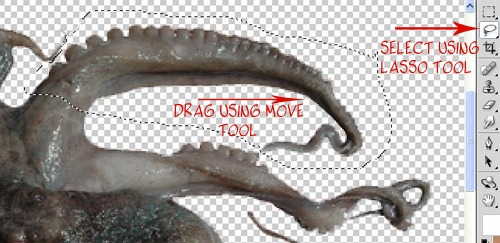
3

Step 3 – Combine several arms together

Repeat the previous step several times until you get about five arms. They should each be on their own layers. Start by using the transform tool (Edit > Free Transform) to rotate, resize, and position them together like the image below. Add a layer mask to each of the layers then, with a soft brush, erase in the layer mask to blend the arms together.
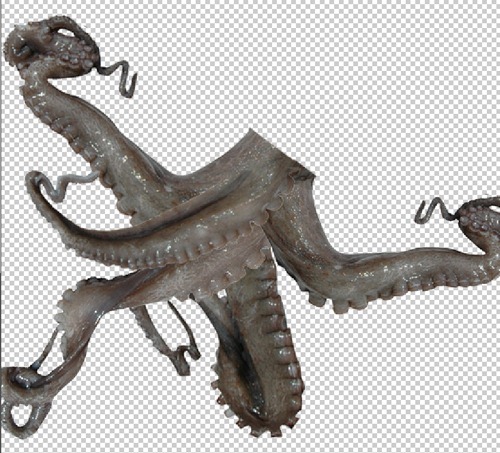
4

Step 4 – Combine the octopus arms with the portrait photo

On the document with the octopus arm, copy the entire image into the clipboard. To do this, press Ctrl+A to select all then press Shift+Ctrl+C to copy merged. Open the portrait photo then press Ctrl+V to paste the octopus arms. Position it on the mouth. Add a layer mask to the layer with the octopus arms then, using a brush with a hardness setting of 0%, erase the edge slightly to blend it with the face.
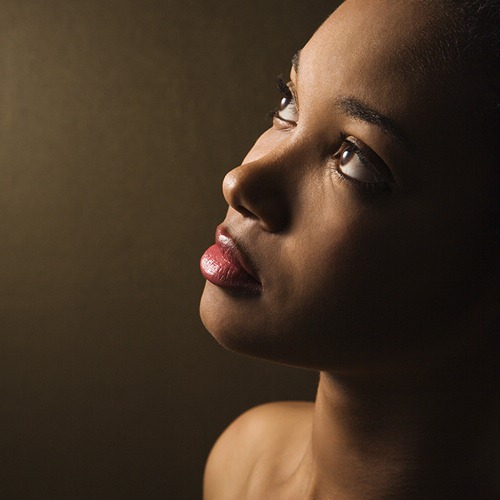
Portrait of serious young woman.

Step 5 – Manipulate the eyes

Now let’s work on the eyes. Start by using the clone stamp tool to distort the eye. Hold the Alt key and click on a white area then click in the colored area.
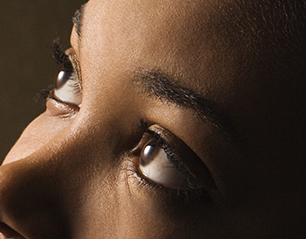
image

Use the dodge and burn tools to manipulate the eyes further. Start with the burn tool to create small holes then use the dodge tool to add some highlights. Use your creativity and don’t worry too much about how it looks.
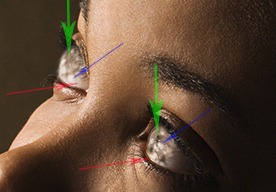
Portrait of serious young woman.

Step 6 – Apply a color effect with adjustment layers

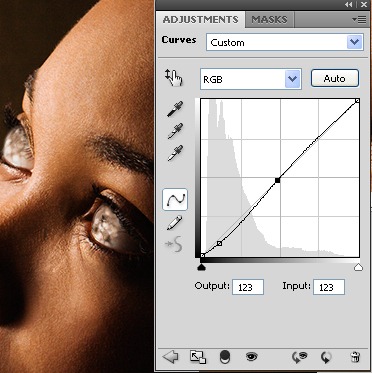
Choose Layer > New Adjustment Layer > Curves to add a new curves adjustment layer. Use the curves adjustment layer to make the image a little darker.
9

Now add a new Levels adjustment layer by choosing Layer > New Adjustment Layer > Levels. Click on the black point eye dropper tool and click on one of the darkest areas in the image. Select the gray point eye dropper tool and click on the white area of the eye.
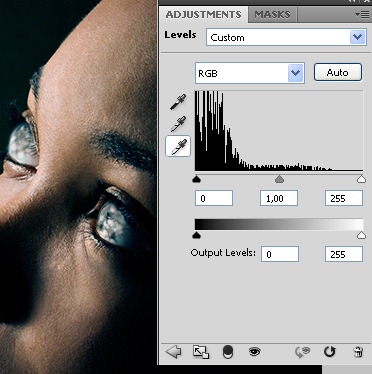
10

Add a new Hue/Saturation adjustment layer by choosing Layer > New Adjustment Layer > Hue/Saturation. Checkmark the colorize option first then adjust the settings as shown in the image below.
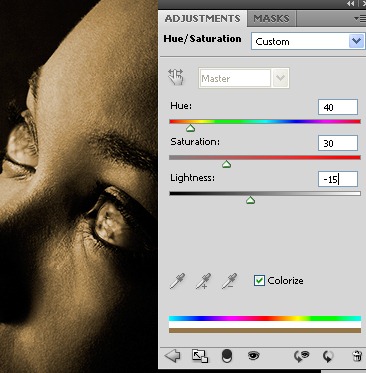
11

Step 7 – Use the burn tool on the face

Use the burn tool to darken some areas using a large brush with a soft edge. This will modify the look of the bone structure. Also spend some time to burn certain areas in the octopus arms to make the jaw look wider. You can make him look like Davy Jones in 'Pirates of the Caribbean: At World’s End.
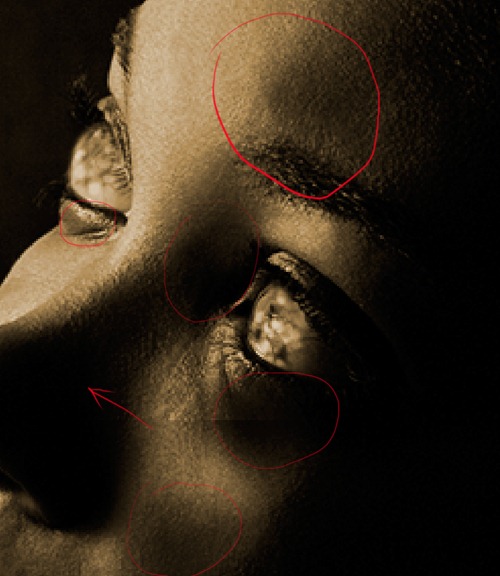
12

Switch to a small hard edge brush to burn some scars on the face like shown in the image below.
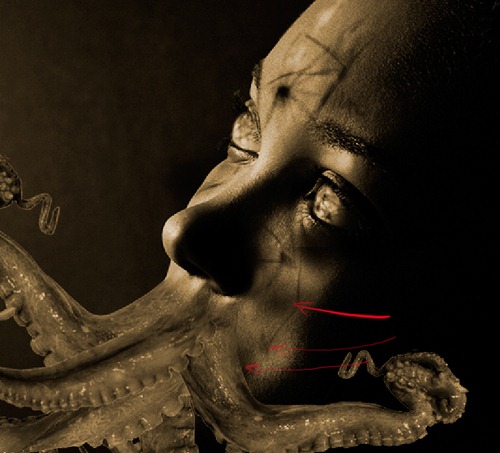
13

Step 8 - Add an alien skin texture

Start by opening the photo of a marble texture in Photoshop.
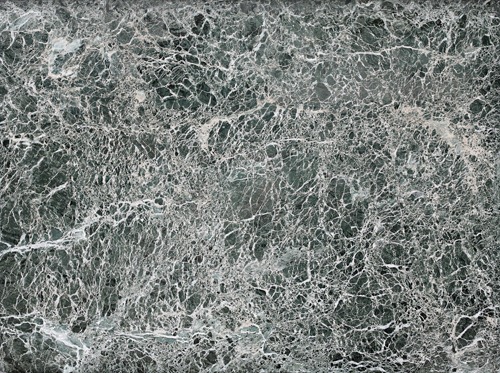
14

We’re now going to copy and paste the marble texture into the image we were working on. Choose Select > All then Edit > Copy. Close the current image of the marble texture to switch back to the alien image we were working on. Choose Edit > Paste to paste the texture into the current document.

Use the eraser tool with a soft edge to erase the marble texture so that it only covers the fast. Change the blending mode to difference.
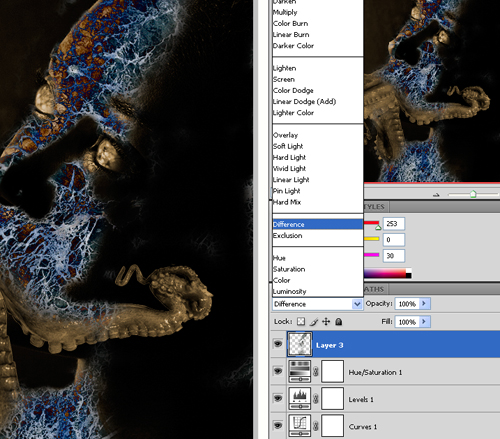
image

Lower the opacity to about 30%. One note to remember is that the difference blending mode will invert the colors of the layer depending on the layer below. So if you want more blue color on the face, you can use the burn tool on the layer with the face.
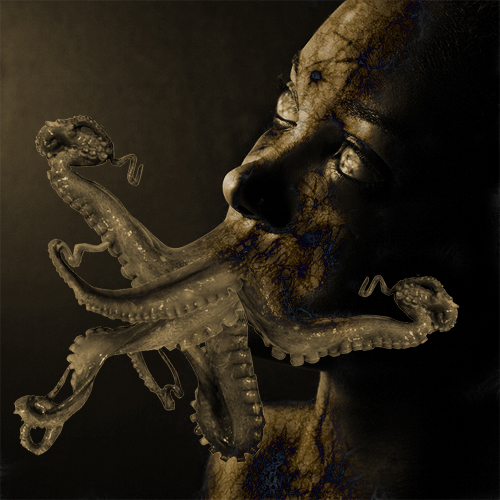
image

You can also move the layer with the marble texture below the adjustment layer to get an effect like this image:
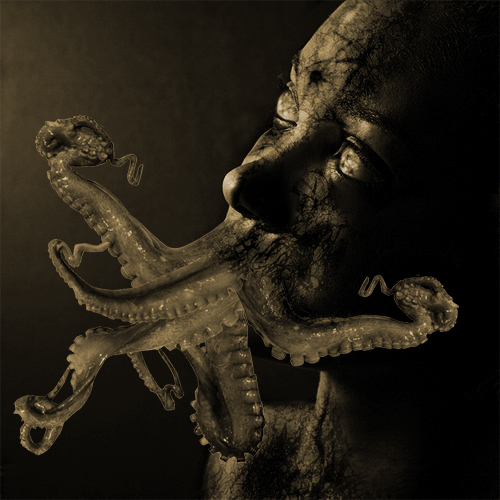
image

Step 9 – Add some abstract lines

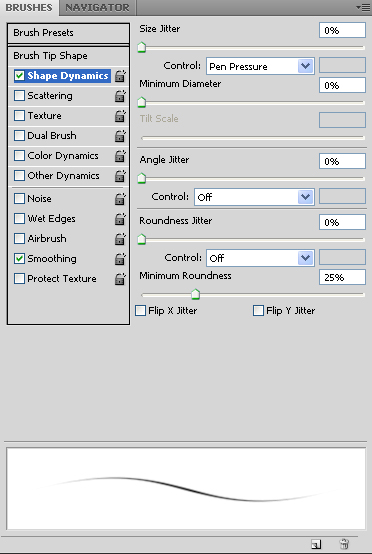
Select the brush tool with a 3 pixel brush and 100% hardness. In the brushes palette (Window > Brushes), apply the settings shown in the image below:
image

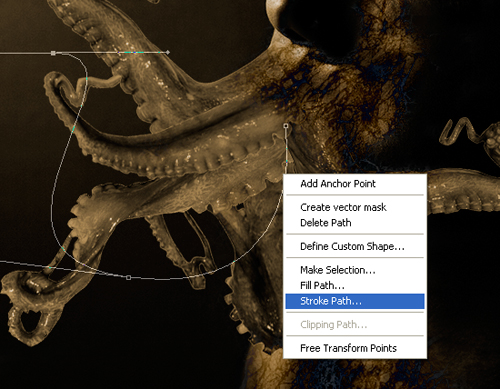
Select the pen tool and, in a new layer, create a curved path like the image below. Then, right click and select stroke path. Select the brush setting and enable the simulate pressure option.
image

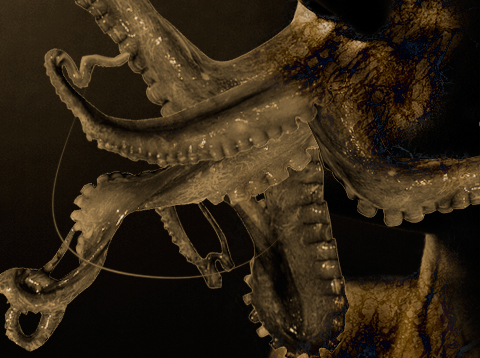
Right click again and choose delete path. Repeat this step to add as many abstract lines as you like.
image

Step 10 – Add highlights to the arms

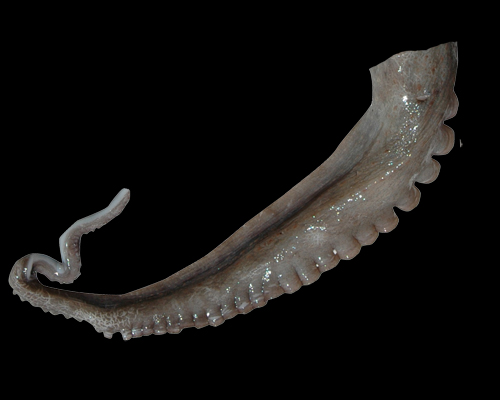
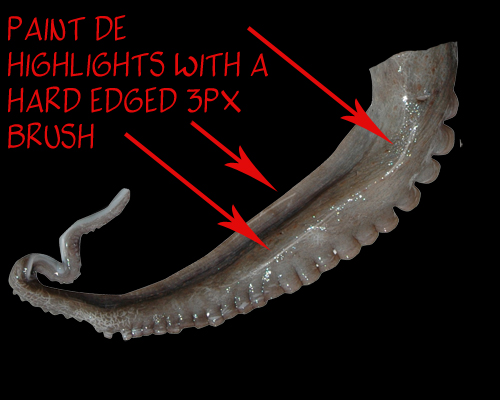
It is helpful to have a pen tablet for adding highlights but this will work with a regular mouse too. We’ll create highlights by painting a thin white line.
image

Start by painting a line through the shape of the arm.
image

image

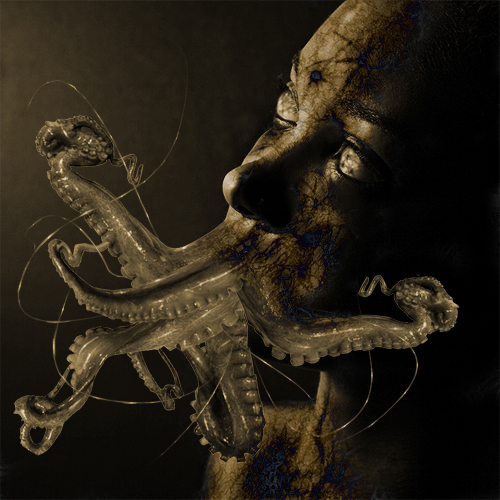
Here’s what our image looks like after adding some highlights":
image

Step 11 – Enhance the arms

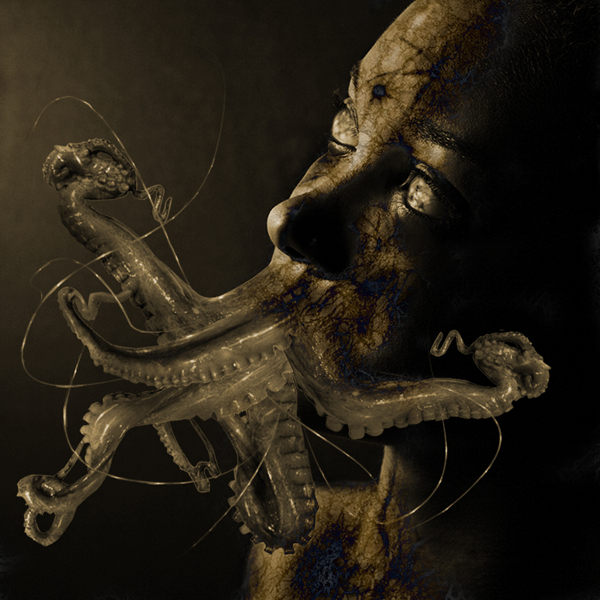
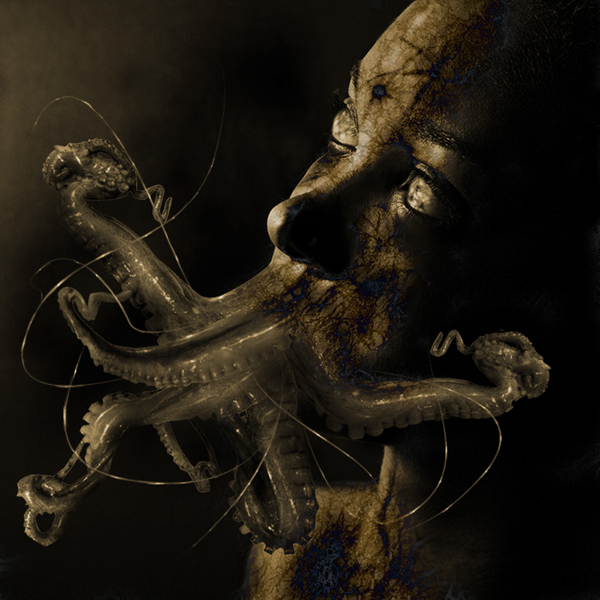
Select the burn tool and set the brush to a big and soft edged brush. Change the range in the option bar to highlights then paint the edges of the arms to make it darker.
image

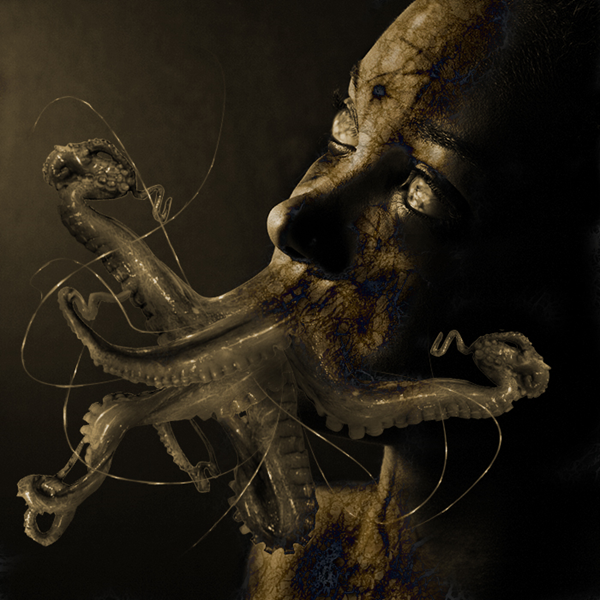
Now change the range to midtones and paint some shadows.
image

Now change the range to shadows and burn the areas that you feel needs to be darker to add depth.
image

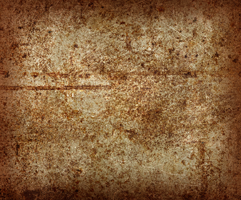
Step 12 – Add a rusty grunge texture

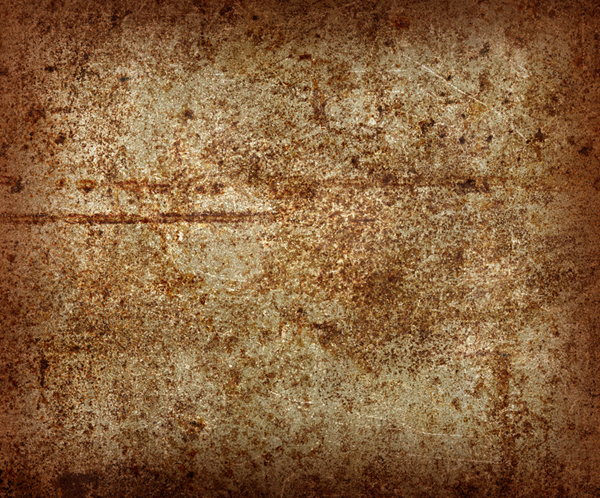
Open the image of the rusty texture and place it into the image of the alien. To do this, choose Select > All then Edit > Copy. Close the image of the texture to go back to the alien image. Choose Edit > Paste to paste the texture as a new layer.
image

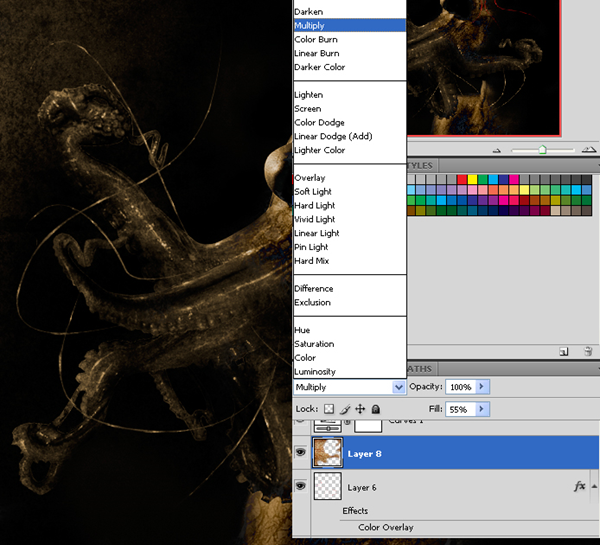
Change the blending mode to multiply then use the erase tool to erase the areas around the face so that the texture only affects the background.
image

Final Results

Here is our completed image. We added more red abstract lines on the eyes using the same technique in step 9.

Alien Photo Manipulation Photoshop Tutorial


ReadMore...

12:24:00 AM

(0) Comments

Make PayPal for free without having to have a credit card

design

Perhaps all that many people already have PayPal. But many may also verify that belon was needed because PayPalnya credit card to verify. But now the period has changed, the year has been changed .. Everything is now completely automated. wah kok story only .. Simply ..

Payoneer card is able to verify your PayPal for free you have to do that is first in the list friendfinder and you will get a Payoneer debit card you can create a Paypal verification.
You can get a debit card free of a Royal Bank of Scotland. The card is very useful to verified paypal, the money from your earnings at this site or do other affiliates throughout the world, the ATM berlogo mastercard.
You do not need to kwatir! card page legal, safe and reliable, and most importantly free. Now how do I get a card and earn here? Read carefully and follow the steps.


First steps first list: HERE

Then, click Join Now
Fill your data with the full.
I am a: Man if you are men, women, Woman, if you

Interested in a meeteng: Man if you want to explore / dg are male, some female woman, or you can select both of them.

For: Friendship (are), Dating (ketemuan), Serious relationship (serious relationship), Marriage (married), you can select more than one, can also select all.

Birthdate: Date of your birth.
Country: your country.

Zip / Postal code: Leave blank, if you are than in the United States (U.S. only)

Email Address: Fill in your email

Username: your username between 4 to 16 characters

Then click Click Here and Have Fun
After that you enter next ketahap.

City: City where you live

Closest City: Same as above

State: Your Province

Your Height: Your Highest

Your Body Type: Type of your body

Your Race: Race your race or if you usually is Asia

Marital Status:'s your wedding

Your Religion: Religion You

Your Education: Education last you

Your Occupation: Your Employment eg Adiministrasi, if your employees, if you're the Business etc..

Introduction Title: Title about you, eg: I am a Man, or I like Playing Football, it's up to you. Minimum 10 characters

Tell others about yourself: mention about you, for example: I am a good women, I like swimming and my hobby playing football, computer, fitness, and others, i love new friends, minimum 50 characters.

If you already have photos, please in the upload, click browse ago I find the file containing your photo. If you do not have fota you can empty the first, later you can fill it again.

Then click Click to Join. So there will be a incoming email in your email.
After that, open your email, then click Activate Now

So you have activated, if you want to fill some login username and password you have in your email.

After that come out first, with the click log out.

Second STEP: HERE Program Affiliati For You

Affiliate Program menu in the Options

Affiliate Signup click, you have 3 options to select the one, the same three options that

Then you just enter the next menu:

Preferred Program: Choose the no 1

First Name: Your first name

Last Name: Name of your final

URL: Website / your blog, you must fill in, if you have not already, make the first in blogger.com, paing free and easy.

Desired Password: Password you want your

Preferred Newsletter Language: English

Email Address: Enter your email

Secondary Email Address: Email you the other, may also cleared

Checks payable to: Your full name according to your ID card

Street Address: Address your ID card

City: City where you live

State / Province: province where you live

Country: your country

ZIP / Postal Code: Zip your town

What is your business tax Classification? Clear as to United States residents only

Tax ID or Social Security Number: Clear as for United States citizens only

Phone Number: No telp you, for example, you no telp: 021 1234567 and 6221 1234567 or make no hp then you 081xxxxx a 6281xxxxx. (Must use code 62, code that is telphone Indonesia)

Which Instant Messenger do you use? Just select None

Use ePassporte: Select only No

Please give us your comments: Make your comment for example: Heloo. I like it. Thank You, or you want to write up what is important in the English language.

Then click Click Here for the Last Step

Then click the small box you have any posts
Yes, I have read and accepted the Affiliate Agreement, ... ... ..
Then click Submit.

Then click on Account Information
Then I click on the blue any posts Here is your account information. Click here to update your information.

click Payoneer: Signup to be paid by Prepaid MasterCard ®. You will be directed to FriendFinder a page hosted by Payoneer, where you can sign up for a card.

Then fill in the data on your Payoneer page, (to be more easily select only your ID card ID that is). After you watch Fill approximately 20 days until your card in your home, after a debit card until you follow the instructions aktivasilah ago I have sent you disurat dg with your card. Nah gampangkan ..

Only a member of FriendFinder you can be a debit card from payoneer, if you list directly on the payoner You can not get it because the country does not have to Indonesia.

Look at your email again, there you will be given a username and password for the affiliate. Login as a member as affiliate login dg is different.

Join with you in the affiliate FriendFinder is automatically join the network all FrindFinder, byk once was, there adultfrindfinder, asiafriendfinder, etc., the element of this porno site but we only take the benefits only. I did not invite you to berporno ria, but only take the benefits only, which is a debit card and dolarnya.

Friendfinder this we will pay 1 dollar to join the male member and the member for 2 Dollar women who join us through the ad references, why do more expensive it is, may be due to the fact more men are happy to explore haal-sexy things like that
And now a special program to provide adultfriendfinder PPC (pay per click), akan tentunnya increase your earning from every visitor click the banner to the most sexy Pajang on our website-blog. Indeed, it is more so that we make maximum blog or website to install the special adult friendfinder this banner ad, so that visitors click on the opportunities greater.

Payoneer debit cards can be used for this activation paypal, but if the funds have been filled. Minimal funds charged $ 2 so you can wait a commission payment can be used in the new life.
Payoneer card is usually sent to the address to us about 20 hours -1 week and this card is the withdrawal physical mastercard. Please join and happy hunting dollars.
ReadMore...

7:17:00 PM

(0) Comments

Cool Photography Layout

design


In this Photoshop tutorial, you will learn how to design a simple blue layout with Photoshop by combining shapes and layer styles.


Step 1

First of all create a new document with the dimensions: 1080 by 880 pixels. Now we are going to fill in the background with a solid colour by going Edit > Fill, and use the colour #CDECFF.

step1

Step 2

We are now going to be creating the navigation background. Create a new layer (Layer > New > Layer) and using the rounded rectangle tool make a selection (860 by 120 pixels) in the center, at the top of the document so that only the bottom curves are showing (hide the top ones outside the document by moving the selection up). Fill (Edit > Fill) the selection with the colour #151515 using the same method we used in the first step.

step2

Step 3

On the navigation background layer go Layer > Layer Styles > Gradient Overlay and enter in the settings below. Clicking on the picture beside "Gradient:" brings up the window on the top.

step3a

Now your navigation should be looking like this:

step3b

Step 4

Now we are going to be adding in some text links to act as the navigation for the site. Select the text tool from the tool box and add in some names of pages that you'd have for a photography site. I've chosen home, about, portfolio, services and contact. The font I've used is Verdana (16pt) and the colours are #EAEAEA for the links and #010101 for the bars between the links.

step4

Step 5

Next up we are going to be adding in the logo / header for the site. So create a new layer and using the rounded rectangle tool again make a selection of about 200 by 240 pixels (with a radius of 10 pixels) on the right hand side of the navigation, and using the technique we used for the navigation background make it so that only the bottom curves are showing (not the top ones). Select the gradient tool and set it to radial. Set your foreground colour to #E0E1E1 and your background to #F1F1F1, fill the selection with a gradient (left click somewhere near the top center and drag to the bottom and release).

step5

Step 6

Now we are going to be adding a layer style (an outer glow) to the logo background. To do this we go Layer > Layer Styles > Outer Glow. I've used the settings below.

step6a

Your layout should now be looking like this.

step6b

Step 7

Using the text tool add the name of the site and a small description underneath. I've made up a name "PhotoSmart" for the site and the description is "Professional Photography" - alliteration :) The colorus I have used are #272727 (for the darker colour) and #7b7b7b (for the lighter colour).

step7

Step 8

Now we are going to be doing the actual logo of the logo ;) If you don't want to make a shape from scratch for your logo, just use a custom shape from Photoshop. I've filled my tick with the colour #85c7ff and added a small white outer glow (Layer > Layer Style > Outer Glow).

step8

Step 9

Create a new layer (Layer > New > Layer) for the top content background area. Using the rounded rectangle tool make a selection of 860 by 590 pixels and fill (Edit > Fill) with #181818.

step9

Step 10

Create another new layer and make a rounded selection of 860 by 400 pixels at the bottom of the background (leave a 10 pixel margin at the bottom). Fill this selection with white (#FFFFFF).

step10

Step 11

Add in some fill in text for the top content area. The colour I have used for the titles is #85C7FF.

step11

Step 12

Now we are going to be adding a divider between the two paragraphs. On a new layer make a selection of 40 by 180 pixels (however high it is between the top and bottom of the black section). Fill the selection with a linear gradient from #181818 to #1e1e1e using the gradient tool.

step12

Step 13

Duplicate the divider layer and go Edit > Transform > Flip Horizontally. Move the duplicated layer to the right so there is a one pixel gap between the original and the duplicate.

step13

Step 14

Add in some fill in and footer text in the white content area and you are complete.

step14

Final Results

Add some finishing touches, maybe a brush in the background underneath the navigation and you're complete. Click on the image below to see the full version.

step15-full

ReadMore...

10:02:00 AM

(0) Comments

E3: Final Fantasy XIV Online Announced for the PlayStation 3 and PC

design

Online games are among the most profitable genres of videogames on the market as they can squeeze profit from their loyal fans by using a big number of ways, from subscription fees to unique content or items.


That is why when Square Enix revealed a few years ago Final Fantasy XI Online, the first MMO take on a Final Fantasy game from the company, it became extremely popular. Recently, the Japanese company, in order to heal Sony's wounds after revealing that Final Fantasy XIII would be coming to both its PS3 and its archrival the Xbox 360, revealed Final Fantasy XIV Online.

But even though it will be console exclusive for the PlayStation 3, the online game will also appear on the PC, in order to bank in on the massive number of MMO players using that platform for their online gaming needs.

Set in the magical realm of Eorzea, Final Fantasy XIV promises to take players on a truly spectacular journey, some adventures and quests in order to transform them into heroes. Sadly, no concrete information about gameplay, story or other such things has been offered but the game has already been pegged for a worldwide release in 2010, and it will come with language support for Japanese, English, French and German players, guaranteeing a large fan base.

Out of the staff that is working on the game we find the producer of Final Fantasy XI Hiromichi Tanaka, as well as the director of the same title, Nobuaki Komoto. The art of the game will be handled by Final Fantasy XII Art director Akihiko Yoshida.

Overall, Final Fantasy XIV seems to be a very interesting take on the online JRPG genre, one which, if we take into account the large popularity that its MMO predecessor FF XI has been enjoying, will go on to be a best seller.

As quoted from : softpedia.com


ReadMore...

8:40:00 AM

(0) Comments

Artisteer – The Automated Web Designer

design

With Artisteer YOU immediately become a Web design expert, editing and slicing graphics, coding XHTML and CSS, and creating Web Design Templates, joomla templates, drupal themes and wordpress themes - all in minutes, without Photoshop or Dreamweaver, and no technical skills.

Artisteer is the first and only Web design automation product that instantly creates fantastic looking, unique website templates and blog themes.


- Design awesome WordPress Blogs, professional Joomla! and Drupal templates, and cool Website designs in Minutes

- Easy to Use

- No need to learn Photoshop, CSS, HTML or other technologies

- Export as Wordpress Theme or CMS Template

Top 10 reasons to use Artisteer

  1. 1. Generate cool Web design ideas.
  2. 2. Adjust generated designs to create great looking Web and Blog templates.
  3. 3. Create perfectly correct, validated HTML and CSS that conform to Web standards.
  4. 4. You don't need to learn Photoshop, CSS, HTML and other Web technologies to create great looking designs, including images and buttons.
  5. 5. If you are a Web designer, generate ideas, prototypes and quick Websites for your clients and friends.
  6. 6. Choose and use many included design elements, from backgrounds to photo objects and buttons.
  7. 7. Automatically solve problems with image aliasing, Web browser compatibility and other details requiring time and knowledge.
  8. 8. Learn how to create professional HTML and CSS code.
  9. 9. Save money on Wordpress Themes and Web design templates.
  10. 10. If you don't have the time, hire your kids to create great looking web design for you.

Trial Version : Download


ReadMore...

2:18:00 PM

(0) Comments

Digital Display

Turn an image into a high-tech digital art. From a distance, it will look like a LED display image but viewing up close will reveal the tiny details. Note: Make sure that the image is in RGB color mode. To switch to RGB color mode, click on RGB Color under the Image> Mode menu.


Prepare the Image

Step 1

Open an image you would like to edit. Or, you may use the image used in this tutorial (from iStockPhoto). Using a low-resolution image is fine.

Bowling Pin Photo

Step 2

If you're using a low resolution image, use the Image Size tool to increase the dimensions. We recommend at least 2000 pixels wide and tall for better clarity in the final result.

Tip: Ensure that the "Resample Image" checkbox is checked to allow scaling the actual pixel dimensions.

Photoshop Image Size Tool


Convert Image into a Grid of Circles

Step 3

Add a Mosaic filter (Filter> Pixelate> Mosaic) with a cell size of 8 square.

Photoshop Mosaic Filter

Step 4

Apply a Find Edges filter (Filter> Stylize> Find Edges)

Find Edges Filter Applied

Step 5

To warp the edges into circles, we'll use the Median filter. Apply a Median filter (Filter> Noise> Median) with radius of 2 pixels.

Photoshop Median Filter Tool

Step 6

Select the Magic Wand tool (W) and apply these settings:
Tolerance: 8
Anti-Alias: Checked
Contiguous: Checked

Magic Wand Settings

Step 7

Use the Magic Wand tool to click on a white area. Inverse the selection (Select> Inverse or Shift+Ctrl+I)

Step 8

Apply another Median filter (Filter> Noise> Median) but with a Radius of 3 pixels.

Photoshop Median Filter

Step 9

Deselect (Select> Deselect or Ctrl+D) and apply an Auto Levels (Image> Adjustments> Auto Levels or Shift+Ctrl+L)

Auto Levels Applied

Step 10

Invert the current layer (Image> Adjustments> Invert or Ctrl+I)

Inverted Image

Step 11

Duplicate the current layer (Layer> Duplicate Layer or Ctrl+J), change the blending mode of the new layer to Overlay, then Merge the layers (Layer> Merge Layers or Ctrl+E).

Create Outlines

Step 12

Duplicate the background current layer (Layer> Duplicate Layer) and change the blending mode of the new layer to Screen.

Duplicated Layer

Step 13

Apply a Find Edges filter (Filter> Stylize> Find Edges).

Photoshop Find Edges Filter Applied

Step 14

Invert the current layer (Image> Adjustments> Invert or Ctrl+I).

Inverted Layer

Colorize

Step 15

Add a new Hue/Saturation adjustment layer (Layer> New Adjustment Layer> Hue/Saturation). For this step, I will use these settings:
Colorize: Checked
Hue: 100
Saturation: 100

Tip: This step is optional and may be skipped if you do not want to colorize the image.

Photoshop Hue/Saturation Adjustment Layer


Final Results

Multicolor version

Rollover the image below to see the before and after effect.

Final Results

100% crop

Final Results 100%

Colorized Version

Rollover the image below to see the before and after effect.

final-results-2-full

Image when printed

Printed Final Results

use the Median filter. Apply a Median filter (Filter> Noise> Median) with radius of 2 pixels.
{mosimage}
  • Select the Magic Wand tool (W) and apply these settings:
    Tolerance: 8
    Anti-Alias: Checked
    Contiguous: Checked
    {mosimage}
  • Use the Magic Wand tool to click on a white area. Inverse the selection (Select> Inverse or Shift+Ctrl+I)
  • Apply another Median filter (Filter> Noise> Median) but with a Radius of 3 pixels.
    {mosimage}
  • Deselect (Select> Deselect or Ctrl+D) and apply an Auto Levels (Image> Adjustments> Auto Levels or Shift+Ctrl+L)
    {mosimage}
  • Invert the current layer (Image> Adjustments> Invert or Ctrl+I) {mosimage}
  • Duplicate the current layer (Layer> Duplicate Layer or Ctrl+J), change the blending mode of the new layer to Overlay, then Merge the layers (Layer> Merge Layers or Ctrl+E).
  • Create Outlines

    1. Duplicate the background current layer (Layer> Duplicate Layer) and change the blending mode of the new layer to Screen.
      {mosimage}
    2. Apply a Find Edges filter (Filter> Stylize> Find Edges).
      {mosimage}
    3. Invert the current layer (Image> Adjustments> Invert or Ctrl+I).
      {mosimage}

    Colorize

    1. Add a new Hue/Saturation adjustment layer (Layer> New Adjustment Layer> Hue/Saturation). For this step, I will use these settings:
      Colorize: Checked
      Hue: 100
      Saturation: 100
      {mostip image=tipon}This step is optional and may be skipped if you do not want to colorize the image. {/mostip} {mosimage}
    {mospagebreak title=Final Results}

    Final Results

    Final Results
    Final results
    (Rollover the image with your cursor to see the image before the Digital Photoshop effect was applied. )
    Final Results 100%
    Final results closeup

    final-results-2-full
    Colorized final results
    (Rollover the Image with your cursor to zoom in. Click to view full image)
    Printed Final Results
    Final results when printed


    ReadMore...

    1:46:00 PM

    (0) Comments

    Circuit Board

    Transform a regular photo into a high-tech artwork made up of blocks and connectors resembling a circuit board.


    Creating the Blocks

    First, we'll create convert the image to blocks using a combination of Photoshop filters.

    Step 1

    Open a photo you would like to edit. We recommend using a high resolution image of at least 1000x1000 pixels. It is also fine to upscale a low resolution image before using this effect.
    This photo will be used to create the Circuit Board Photoshop effect.

    Step 2

    Duplicate the layer (Layer> Duplicate Layer or Ctrl+J).
    Duplicated Layer

    Step 3

    Activate the top layer and apply a Mosaic filter (Filter> Pixelate> Mosaic) with a cell size of 16 square.
    undefined

    Step 4

    Apply a Find Edges filter (Filter> Stylize> Find Edges).
    Find Edges filter applied.

    Step 5

    Apply a Median filter (Filter> Noise> Median) with a radius of 2 pixels.
    The Median Filter

    Step 6

    Apply a Minimum filter (Filter> Other> Minimum) with a radius by 4 pixels.
    The Minimum Filter

    Step 7

    Finally, invert the current layer (Image> Adjustments> Invert or Ctrl+I).
    Inverted Layer

    Adding an Outline to the Blocks

    Now that we have the blocks created, we'll add a simple outline around them.

    Step 8

    Duplicate the top layer (Layer> Duplicate Layer or Ctrl+J) and change the blending mode of the new layer to Screen.
    Layer duplicated and blending mode set to Screen.

    Step 9

    Apply a Find Edges filter (Filter> Stylize> Find Edges).
    Find Edges filter applied.

    Step 10

    Invert the current layer (Image> Adjustments> Invert or Ctrl+I) and the outline should blend into the image. One last thing to do is to reduce the opacity

    Creating the Connectors

    We're almost done with the effect. All we need to do now is add the connectors. This is a simple process using a few Photoshop filters.

    Step 11

    Duplicate the Background layer (Layer> Duplicate Layer or Ctrl+J) and move it to the top.
    Layer inverted and opacity set to 25%.

    Step 12

    Apply a Mosaic filter (Filter> Pixelate> Mosaic) with a cell size of 16 square.
    Layer duplicated and moved to top.

    Step 13

    Activate the new top layer and apply a Median filter with a radius of 8 pixels.
    The Median Filter

    Step 14

    As you might have guessed, we'll now apply a Find Edges filter (Filter> Stylize> Find Edges).
    Find Edges filter applied.

    Step 15

    Finally, invert the current layer (Image> Adjustments> Invert or Ctrl+I) and change the blending mode to Screen.
    Layer inverted and blending mode changed to Screen.

    Colorizing the Final Results

    This step is optional. If you would like to colorize the final results, follow this step:

    Step 16

    Add a new Hue/Saturation adjustment layer (Layer> New Adjustment Layer> Hue/Saturation) as the top layer. Checkmark Colorize and apply your desired color settings. Here are the settings I've used for this step:
    Colorize: Checked
    Hue: 100
    Saturation: 100
    Lightness: 0
    The Hue/Saturation Tool

    Final Results

    Rollover the images below to see the before and after effect.

    Circuit Board final-results-full Circuit Board


    ReadMore...

    1:38:00 PM

    (0) Comments

    Disco Tiles

    Tired of old boring prints? Try out this fun photo effect on your photos that you can print out to impress your friends. From a distance, it will look like a normal photo but view the printed image up close and you'll see an abstract mosaic pattern that resembles a disco floor. This Photoshop effect is also great for enlarging low resolution photos into poster-size prints.


    Preview of Final Results

    undefined

    Disco Tiles Photoshop Tutorial

    Step 1

    Run Photoshop and open the photo you would like to add this effect to into Photoshop.

    undefined

    Step 2

    Next, we need to resize the image to the final output size that we would like to print at. Enter the width and height for the document size and specify the resolution. You can set the resampling method to Nearest Neighbor to speed up this process.

    undefined

    Step 3

    Before we continue, zoom out so that you can see the whole image. Now open the Filter> Pixelate menu and select Mosaic. In the Mosaic filter tool, adjust the cell size to the largest possible that will retain important details. If you are working on a portrait, you can simply look at the eyes as you adjust the cell size.

    undefined

    Step 4

    The image is pixelated, but it doesn't look very special. So before we continue, we'll curve the edges for a more contemporary effect. To do this, open the Filter> Noise menu and select Median. Adjust the radius of the filter until you get the rounded corners that you like.

    undefined


    Step 5

    We're done creating the tile pattern, so we'll work on creating the outline now. Duplicate the layer by pressing Ctrl+J or opening the Layer menu and selecting Duplicate. Next, change the blending mode of the new layer to Screen.

    undefined

    Step 6

    Apply a find edges filter by opening the Filter> Stylize menu and selecting Find Edges. This filter draws an outline of the edges.

    undefined

    Step 7

    Press Ctrl+I or open the Image> Adjustments menu and select Invert. The outline should be blended into the photo.

    undefined

    Step 8

    The tiles and outline effect is now complete. But the effect looks flat and boring. In the next steps, we'll enhance it using a new layer that will add depth and a glow effect to the tiles. First, press Shift+Ctrl+E or open the Layer menu and select Merge Visible. This will create a duplicate of the image as a single layer. Change the blending mode to Overlay. By adding a duplicate of the image with an Overlay blending mode, we can increase the contrast which will enhance the appearance of depth in the tiles.

    undefined


    Step 9

    Now we'll add a dramatic glow to the tiles. Before we begin, zoom in to 100% so that you can see the individual tiles. Open the Filter> Blur menu and select Gaussian Blur. In the Gaussian Blur filter tool, adjust the radius so that the tiles create a soft glow effect.

    undefined

    Step 10

    We're done! But here's one more step in case you feel that the outline is too thin and you would like to thicken it. Open the Filter> Other menu and select Maximum. Adjust the radius slightly to increase the size of the outline. Click OK when done.

    undefined

    Final Results

    Original Photo

    undefined

    Disco Tiles Photoshop Tutorial

    undefined

    undefined

    undefined

    ReadMore...

    12:16:00 PM

    (0) Comments

    Decorating Text

    design

    Creating text and then decorating it is often a daunting task, not knowing what colors to use and how to achieve effective results with the resources you have is often hard to overcome. Keeping your text simple but still having it stand out is an art in itself. Here we learn lots of techniques on decorating text like using textures, brushes and patterns. Pick and mix which techniques you use or just try all of them and end up with an image like this.

    Preview of Final Results

    clip_image002

    Decorating Text Photoshop Tutorial

    Step 1

    clip_image006Before we start on the actual image, we first need to create a simple pattern which we will use later. Create a new document with dimensions 20x20px then go edit>preferences>grid... and use these settings. Create a new layer (Shift+Ctrl+N), hide the background layer then set the foreground color to #808080. Now recreate the image shown here using whatever method you feel comfortable with, the polygonal lasso tool is a good choice for what we want to achieve. Now save the pattern by going edit>define pattern, after saving, close this document. When making patterns like this one it is important to make sure that they will repeat when tiled, there are various methods of achieving this like the offset filter, however with a pattern this simple it easy enough just to visualize it.

    clip_image004

    Step 2

    clip_image008Create a new document, this time with dimensions of 1024x768px then select the gradient tool (G) and open the gradient editor. Click the arrow in the presets box and choose pastels, select the first gradient in this set. Using a linear gradient drag from the bottom of the page to the top, holding Shift to keep it vertical. Lastly change the opacity of this layer to 75%. A gradient is always a strong way to begin a piece like this but does require a texture over it.

    clip_image010

    Step 3

    clip_image012Here we will create our background texture, first find a simple image of clouds, the one I used can be found here. Copy and paste this image then resize it to fit the page. Next invert the colors (Ctrl+I) and set the blending mode to screen. Now add a bit more depth to the background by doing exactly the same with another image of clouds like this one. When adding a texture to any piece on Photoshop, always experiment with all the blending modes as some will look better than others depending on the texture you use.

    Step 4

    Before you start on the foreground, a good idea is to set up some swatches that you will use regularly throughout this piece. Double click on the foreground color and create a swatch of these three colors; #b5005e, #39d336, #00baff.

    clip_image014

    Step 5

    clip_image016Okay now for the text, start by creating a new layer group named 'foreground', it will become clear why we did this later on. Select the text tool (T) and draw a text box that goes from the left of the page to the right. Type your text in then highlight it all and go window>character to bring up the character settings. Use all the same settings as shown here. The reason for the wide character spacing is to allow enough space for the borders we will add.

    clip_image018

    Step 6

    Right click on the text layer and select blending options and add a drop shadow, outer glow, bevel and emboss, color overlay, pattern overlay and a stroke. Use the settings shown below. You will notice that, although we used the drop shadow and the outer glow, we just mimicked the effect produced by a stroke. The blending options can be very powerful when used in this way so take words like drop shadow as a guideline rather than an instruction.

    clip_image020

    clip_image022

    clip_image024

    clip_image026

    clip_image028

    clip_image030

    clip_image032


    Step 7

    clip_image034The next few steps will show how to add some goo and drips to the text. Set the foreground color to the purple swatch then create a new layer group named goo directly below the text, still within the foreground group. Create a new layer within this group (Shift+Ctrl+N). Use the line shape tool (U) and create lines like the ones shown here, make some with the weight set at 2px and some with weight at 3px to add some variety.

    Step 8

    Create a new layer within the goo group. Select the brush tool (B) and use a round brush with a size of 3px and a hardness of 100%. Zoom in to about 400% and draw some droplets at the bottom of each line, also draw some beads of liquid on the line.

    clip_image036

    Step 9

    clip_image038Create another new layer within the goo group. Using the same brush, decorate the text a little more to achieve a result similar to below. This step can take a few tries to get right but is quite enjoyable at the same time.

    clip_image040

    Step 10

    If you try Ctrl+clicking on the text layer you will notice that the selection will not include the border around the text, this will become a problem in the next few steps as you will see. The easiest way to overcome this is to first duplicate the text layer then drag it below the original text, now create a new layer directly below the new text layer then select the new text layer and merge it down (Ctrl+E) then name it 'selection'. Now if you Ctrl+click this layer you will notice the selection covers the border of the text and we also still have our original text which can be edited easily.

    clip_image042

    Step 11

    clip_image044Create a new layer group named lines, this time above the text layer although still in the foreground group. Create a new layer then select the pen tool and draw path, making sure to hold and drag after each point to ensure the path is smooth. Next right click on the path and select stroke path and don't check simulate pressure. The result should be similar to below. On these brushes, using simulate pressure will blend out both ends of the line which is not what we want here.

    Step 12

    Now select the eraser (E) and use a 100px diameter, 0% hardness and 30% opacity to fade out the end of the line. Also use the blur tool (R) with a similar brush to blur some parts of the line.

    clip_image046

    clip_image048

    Step 13

    Now we will use that layer we created back in step 10 to remove parts of this line accurately. The concept behind this method is to use our selection layer to select all our text then create a new selection manually and intersect these selections, let’s see how it works. clip_image052First Ctrl+click on the selection layer then select the polygonal lasso tool (L) and in the main toolbar change it to intersect mode. Choose a part of the line that you want behind the text then draw round that part of the text then select the layer with the line in it and hit Delete. So in the image here, I want the line to go behind the left part of the 'H', note that I didn’t draw accurately around the 'H' this is because only the parts included in both selections will become our final selection. Continue using this method for other parts of the line to give the impression it weaving in and out of the text.

    clip_image050

    clip_image054

    Step 14

    clip_image056Try adding some more lines using the same method shown in the last three steps. Try also changing the brush size to either 2px or 1px or switching on simulate pressure.

    In this example I used a 1px brush with simulate pressure on.

    clip_image057

    Here I used our green swatch, again with 1px and simulate pressure on.

    clip_image059

    For this effect I used a 2px brush with simulate pressure on and when creating the path, held Shift to get a straight line.

    Step 15

    clip_image060A quick way to make some random dots is to first select the brush tool, using a 2px hard brush then hit F5 to open the brush editor. Use the same settings as shown here and use the blue swatch we created earlier. For this brush we can drag it, note how the dots will be random and will give different effects depending on how fast you move the cursor.

    clip_image062clip_image064


    Step 16

    For this step you will need to have a floral brush set, lots of these can be found here, download one and install it, note that you may need to restart Photoshop after installing it. Create a new group behind the text and in a new layer; use the purple swatch and go wild with these brushes, making them flow from the letters and the lines. My set included some leaves which I dotted around using the green swatch. Using the floral brushes was just an idea, other vector style brushes can give good results too, one which is worth trying is using tree brushes on the top half of the letters.

    clip_image066

    clip_image067

    Step 17

    clip_image069Another nice detail that is simple to make is these blue lines. First create a new layer then select the blue swatch then the brush tool and use an 8px hard brush. Use the pen tool to create a large arc, mine went roughly from the 'H' to the 'O', now stroke the path and make sure simulate pressure is checked. Use the eraser tool to get rid of half of the line and to blend it slightly. I created three of these.

    Step 18

    Duplicate this layer, with all three lines in it then hit Ctrl+T and rotate the lines roughly 180° then move them to below the text as shown here.

    clip_image071

    Step 19

    clip_image073The text is looking nice now however the foreground and background are like to separate images at the moment so we will learn a few ways to make them harmonize better. A good way to approach this problem would be to create an in between layer which is kind of half and half and can bridge the gap between foreground and background. Start by creating a new group within the foreground group but below everything else in that group. Create a new layer in this group then go image>apply image then edit>transform>warp and drag only the boxes here to warp the image, make sure that when your warping the image it still covers the entire document or else you will be left with sharp edges.

    Step 20

    clip_image074Now select this layer then go layer>layer mask>hide all, change the foreground color to white then use a few of the following brushes with medium opacity to unhide some of the content on this layer, make sure the layer mask is selected rather than the layer itself.

    1. A grungy brush of any size, this can be a brush you have downloaded or one that comes with Photoshop like the spatter, charcoal or chalk brushes, these work well when used at a larges size and dotted rather than dragged.

    clip_image0762. A floral brush of medium to large size. This looks good on a slightly higher opacity brush as well as on low. Never drag these brushes, it just doesn't work.

    3. A really good effect can be created when using the pattern stamp tool (s), although it requires a few tries to get it right. Try using the pattern we created earlier and also some of Photoshop's like the checkered one.

    Optionally you can repeat these two steps again to add more detail as you are trying to get a fine balance between the foreground and background.

    Step 21

    clip_image078You will notice with the image we have at the moment, the clouds are only in the background. Let's solve this problem; we have to choices here, we either add more in front of the foreground group or we can take something away from the foreground. I've found that the taking away method produces a more realistic result. However if you have some cloud brushes kicking about feel free to use them but in this image I didn’t. First let’s check where we are at in terms of layers; at the moment you should only have a foreground group, a background group and the white background layer, everything else should be contained within these. In the background group duplicate one of the cloud layers then drag it out of this group and to the very top of the layer stack. Change the blending mode to normal then go select>color range and pick the very darkest part of the image and use the settings shown below, OK. Now you should have a rough selection around the clouds, hide this layer then select the foreground group and in the layers panel click the layer mask button at the bottom.

    clip_image080

    Step 22

    clip_image082The last step is to add some color adjustments to the whole image. Start by creating a new layer above the foreground group then select the gradient tool and create a gradient like shown here. Use a radial gradient setting an create a blurry circle, go back to the gradient editor and change the color and do this again until you have something that resembles below. Lastly change the opacity of this layer to 50% and the blending mode to color. One last adjust that I save until last is to move that cloud layer that we duplicated to the top of the layer stack, unhide it then change the blend mode to soft light; I'll let you decide on the opacity this layer should be.

    clip_image083


    ReadMore...